
Thunderbird is a free, open-source email app for Windows, macOS and Linux. You can download it here.
1. Open account settings
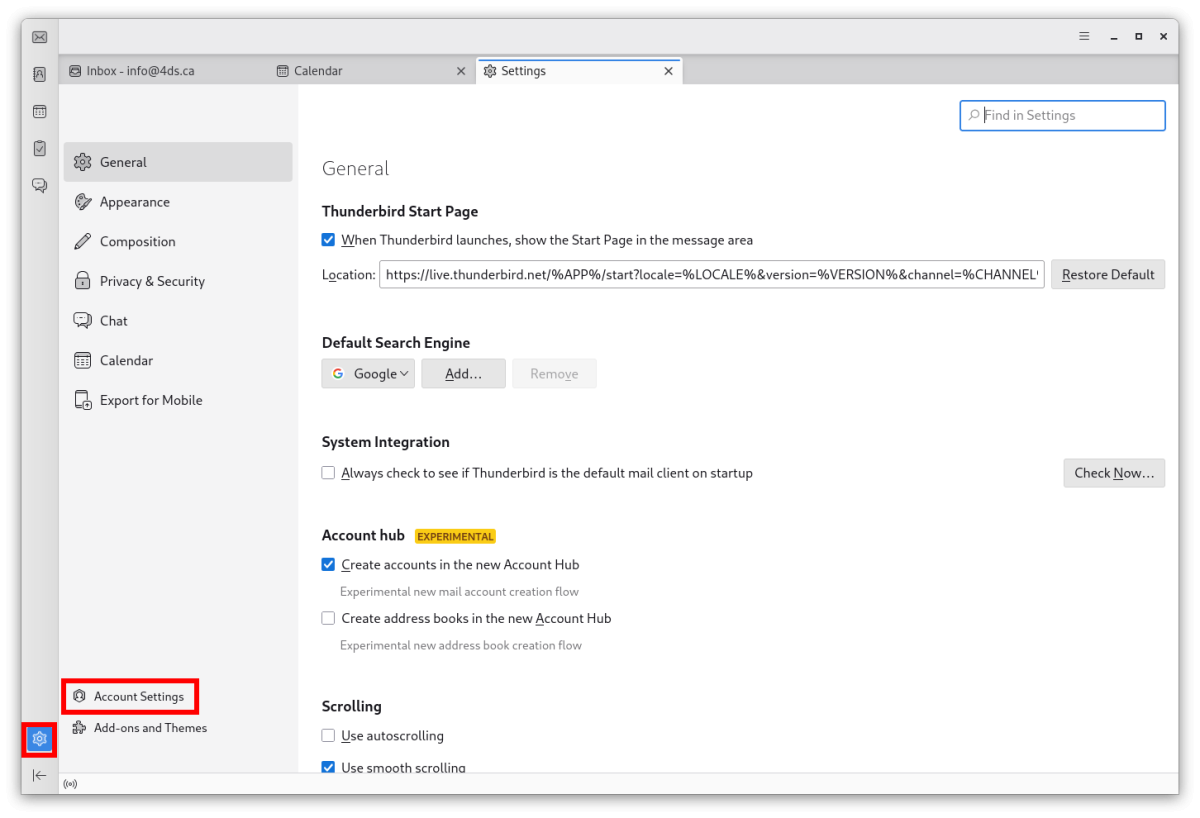
Click the settings icon at the bottom left of the Thunderbird window, then Account settings at the bottom of the list.
2. Add a mail account
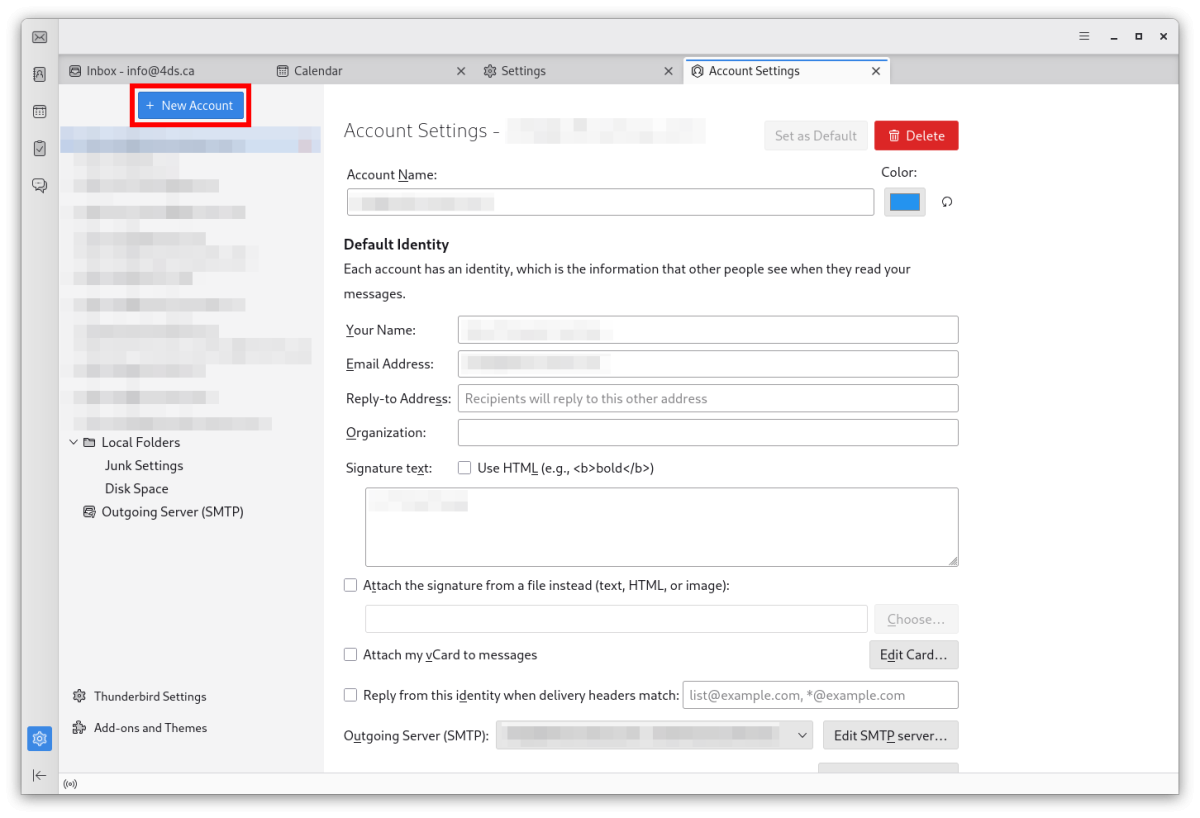
Click New Account › Mail account.
3. Your name and address
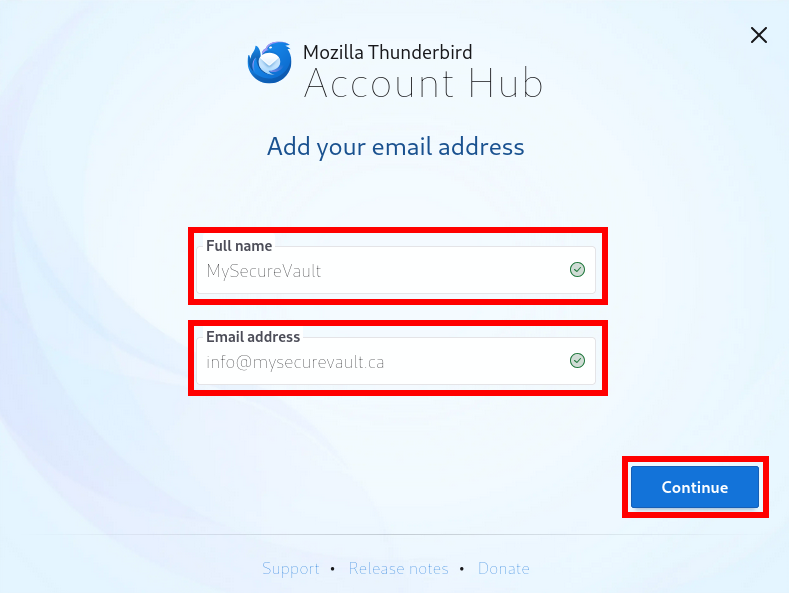
Enter the name your recipients will see (Full name) and your email address hosted at 4DS Technologie, then click Continue.
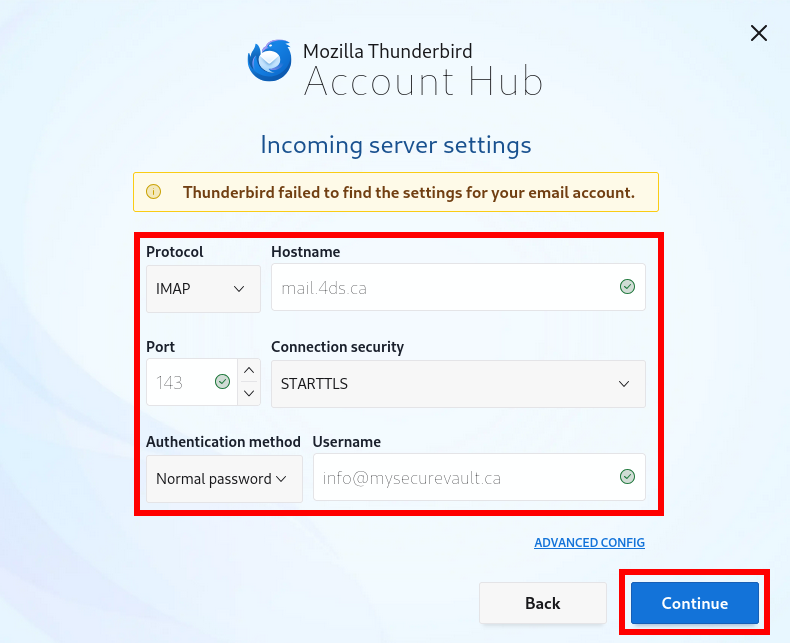
4. Incoming mail
Enter the following incoming server settings, then click Continue:
- Protocol: IMAP
- Hostname: mail.4ds.ca
- Port: 143
- Connection security: STARTTLS
- Authentication method: Normal password
- Username: your email address
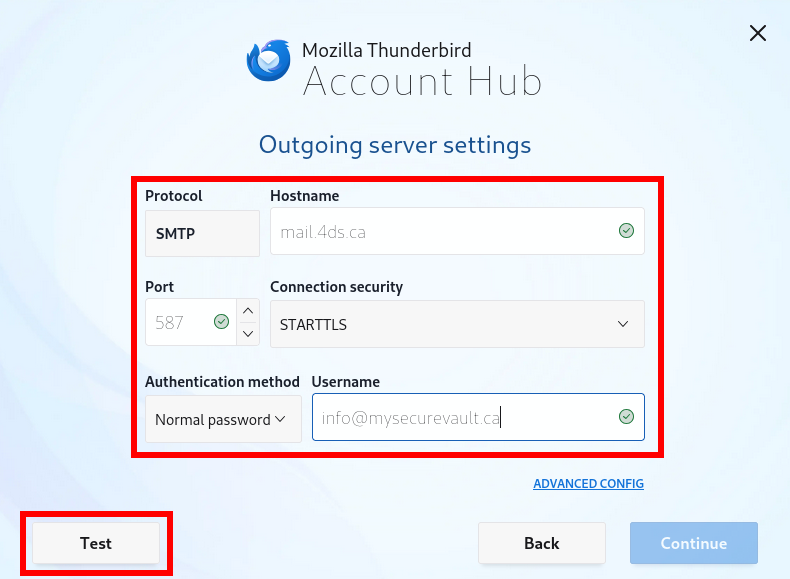
5. Outgoing mail
Enter the following outgoing server settings, then click Test:
- Protocol: SMTP
- Hostname: mail.4ds.ca
- Port: 587
- Connection security: STARTTLS
- Authentication method: Normal password
- Username: your email address
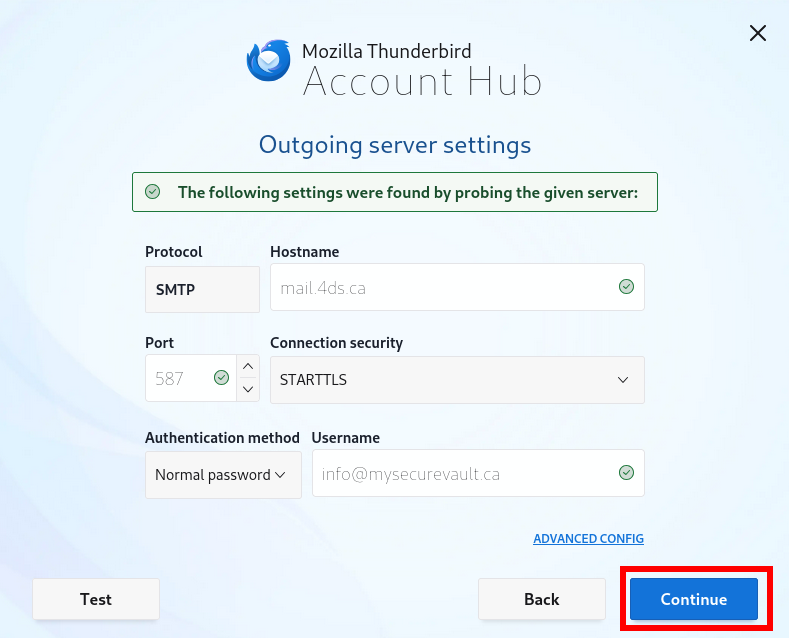
6. Confirm
The wizard reports that the settings were found. Click Continue.
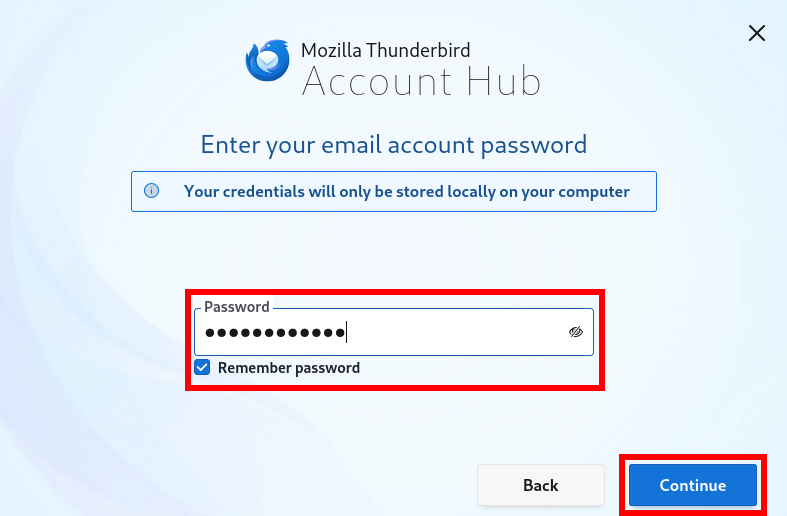
7. Password
Enter your password, check Remember password and click Continue.
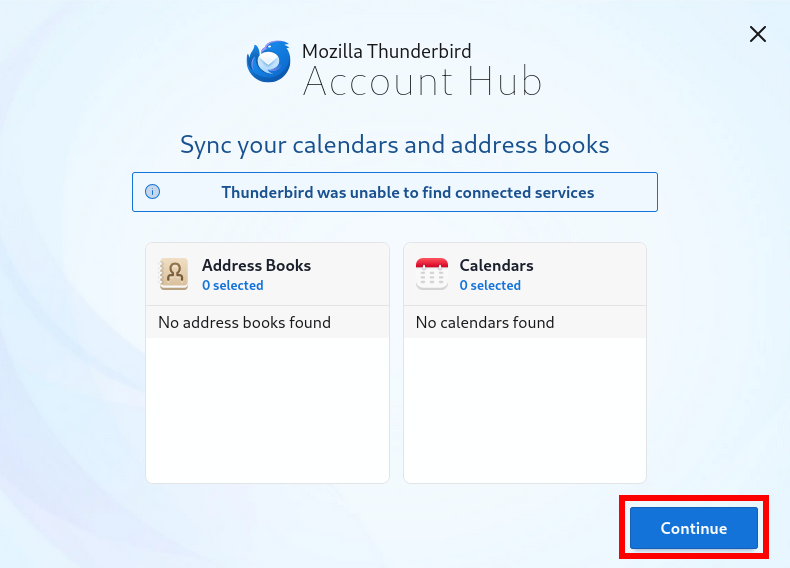
8. Address book and calendar
Thunderbird will not find an address book or calendar for your email account: this is normal. Click Continue.
If you also have our Nextcloud cloud, its contacts and calendars are set up separately: see the Nextcloud apps.
9. Finish
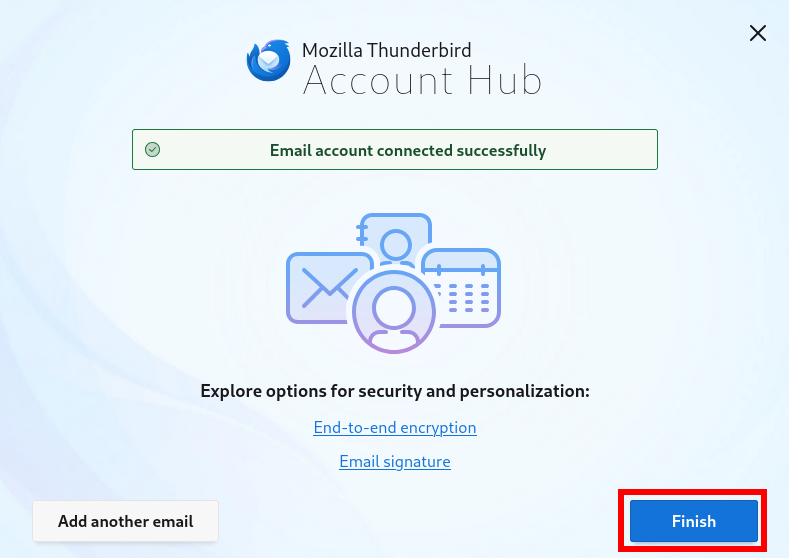
The wizard confirms the account is connected. Click Finish.