
Your phone system reads closing periods from a Nextcloud calendar named PBX. During a closure, your auto attendant announces that your office is closed.
1. Sign in to Nextcloud
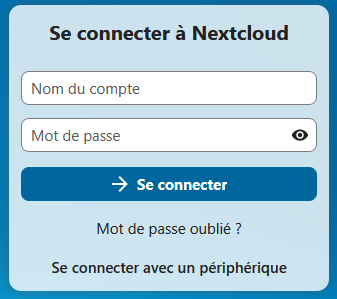
Go to https://cloud.4ds.ca, enter your credentials, then click Log in. Your account name and password were emailed to you.
2. Open the calendar
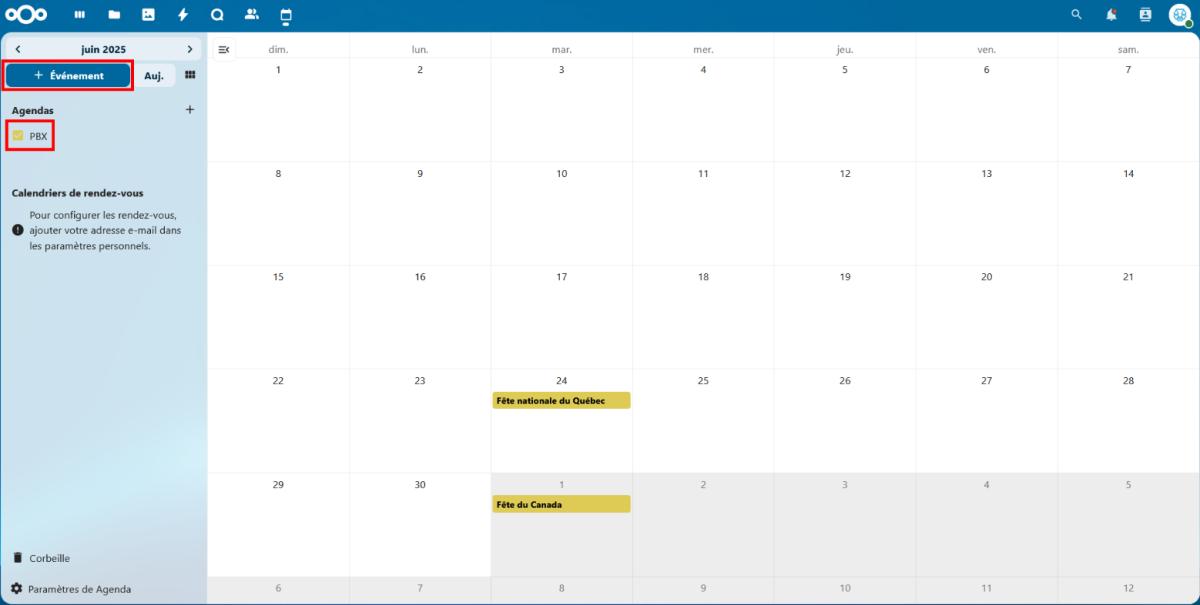
In the menu at the top left, click Calendar.

3. Add an event to the PBX calendar
If your account has more than one calendar, make sure you add the event to the one named PBX. Click + New event.
4. Enter the closing period
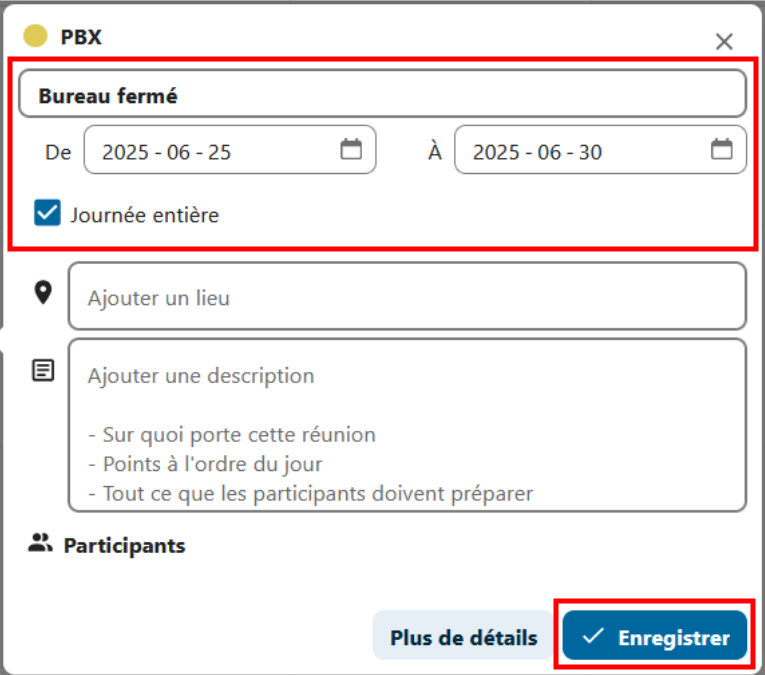
- Title: for example "Office closed". The title is only for you; the phone system does not read it.
- From and To: the start and end date and time of the closure.
- All day: check this box to close full days; "From" then starts at 12:00 a.m. and "To" ends at 11:59 p.m. on the given day. For a single day, enter the same date in both fields.
In the example below, the office is already closed on June 24 and July 1; we add the closure from June 25 to June 30. Click Save.
5. Change a closure
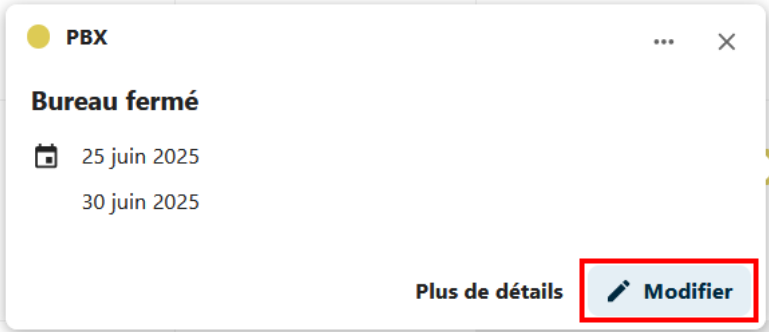
Click the event in the calendar, then Edit. When you are done, click Update.
6. Delete a closure
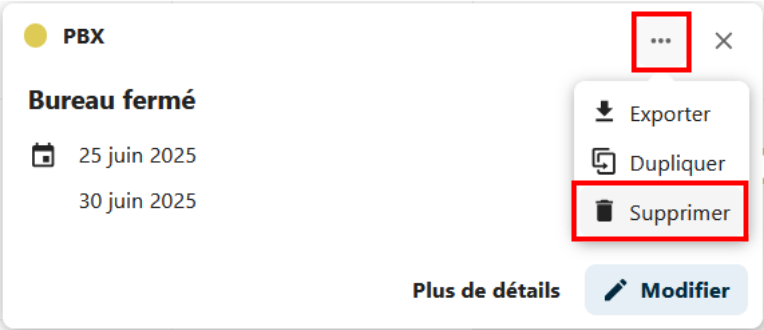
Click the event, then the … button at the top right of the window, and Delete.
Processing delay
After adding, changing or deleting an event, allow up to one hour for the change to reach the phone system. Plan your closures ahead of time.